| The main LIST page |
The "List" option will bring up a window similar to the one below as its first, main window.

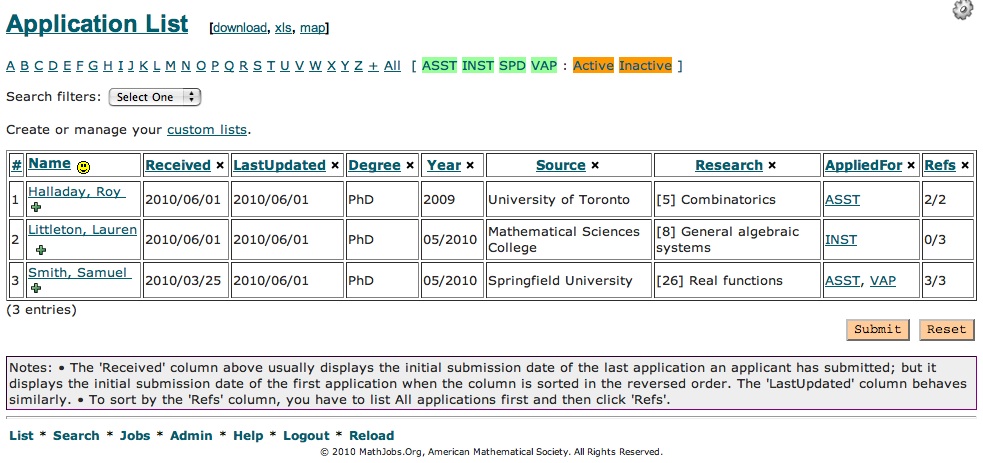
Let's take a look at the features offered on this page, starting from the top, going down:
- The *Links* listed in the Mathjobs.Org header are all the actions/options available to you as the departmental MathJobs administrator. The first link is "List", which would just reload the List page you are on right now. The other links would take you out of List and into the option associated with the link selected.
-
If you do not have any applications for your job(s) yet, or if you haven't listed any jobs yet, the Application List area will be blank. Once you have applicants for your job(s), they will appear in this list and the following documentation may assist you. Later, when you mark your jobs as "finished" the names of applicants for those positions will no longer appear on this list.
-
Clicking on a letter in the alphabet listing under the Application List header will create a list of only those applicants whose last name begins with that letter. Clicking All places the current application set all on one long screen.
-
To the right of the alphabetic selection, you will see the acronyms you've assigned to your job listings. (e.g., Research Asst. Professor might be "RAP"). Initially, all your job acronyms will appear as bright green. Clicking on one or more of them will make the acronym show as gray and only applicants for the remaining jobs will appear on the list. To see applicants for one position only, make sure only that acronym is selected in bright green and all the others show as gray.
-
Clicking on one of the column headings: Name, Received, LastUpdated, Degree, Year, Source, Research will re-order your applicant list based on the alpha or numeric ordering of the column. Using the x hides a column. By clicking on the <<<< by the Name column heading, you can recall those columns to your applicant list.
-
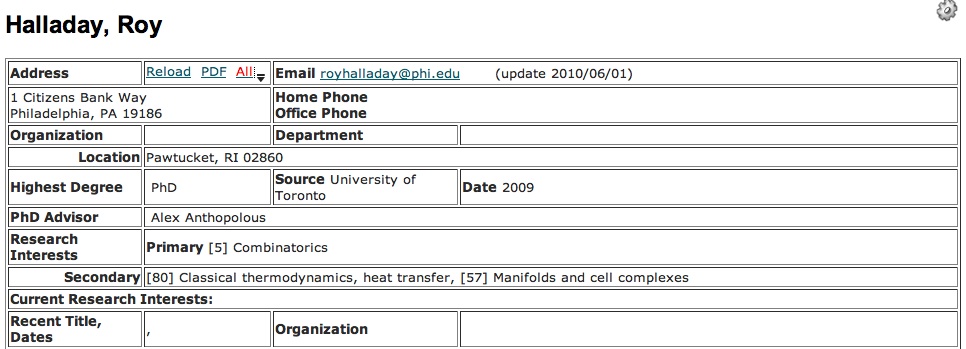
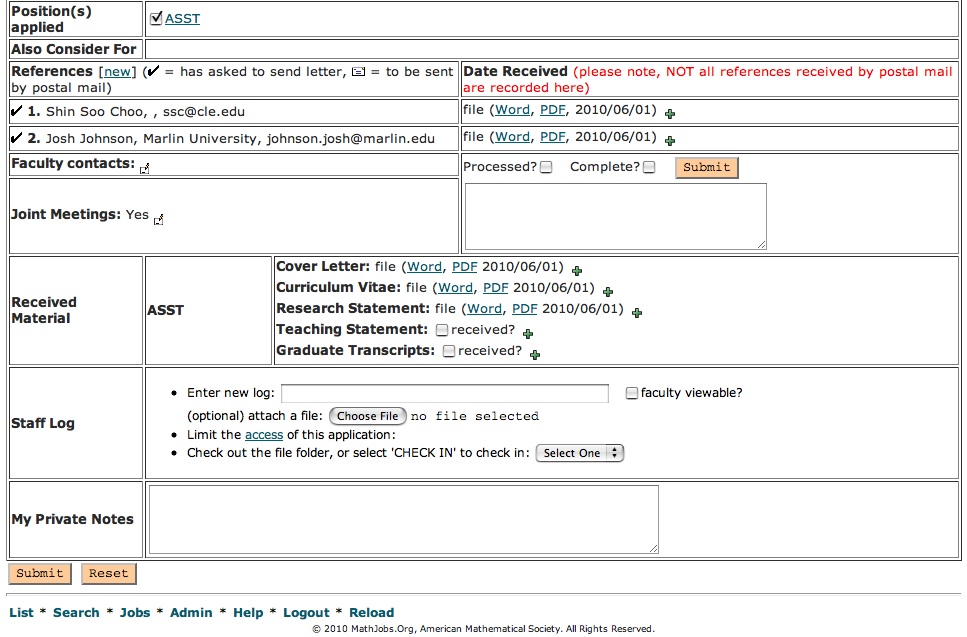
To print, update, or process an application, click on the name of the applicant, in the Name column. This will bring up a window, which is documented below.
-
Once all required items have been received for an application, check the box in the Complete? column and click on the Submit button at the button of the page.
|
| Printing, Processing, and Updating your applications |
|
|
|
|